Guide
Connect Progenda to Owivo
Owivo shows the real availability from your Progenda calendar and writes every appointment the AI receptionist makes straight into it. You connect with a Progenda security token, never with your password. It takes about five minutes.
Before you start
- You have a Progenda account (Helena Pro Calendar) holding the practice calendar.
- Online booking is on and your weekly schedule is filled in. Without a schedule Progenda returns no times and Owivo shows nothing.
- Recommended: create a separate Progenda user "Owivo" with access to only the calendars Owivo may book. The token sees everything that user sees.
- 1
Check your schedule
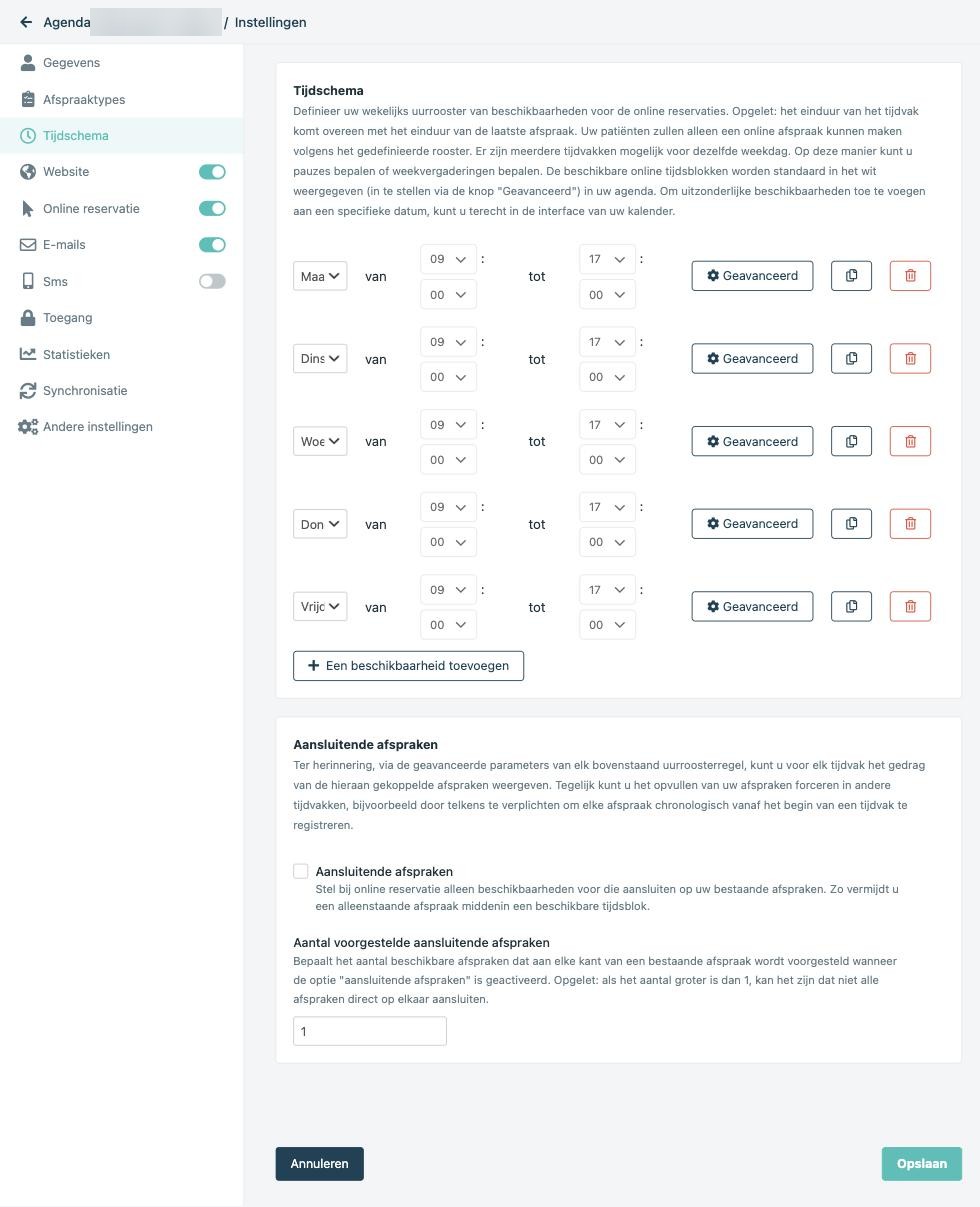
In Progenda, open the practice calendar, go to settings and click Schedule (Tijdschema). Set for each day when patients may book online, and save. This schedule decides exactly which times Owivo offers patients.
- 2
Go to Synchronisation
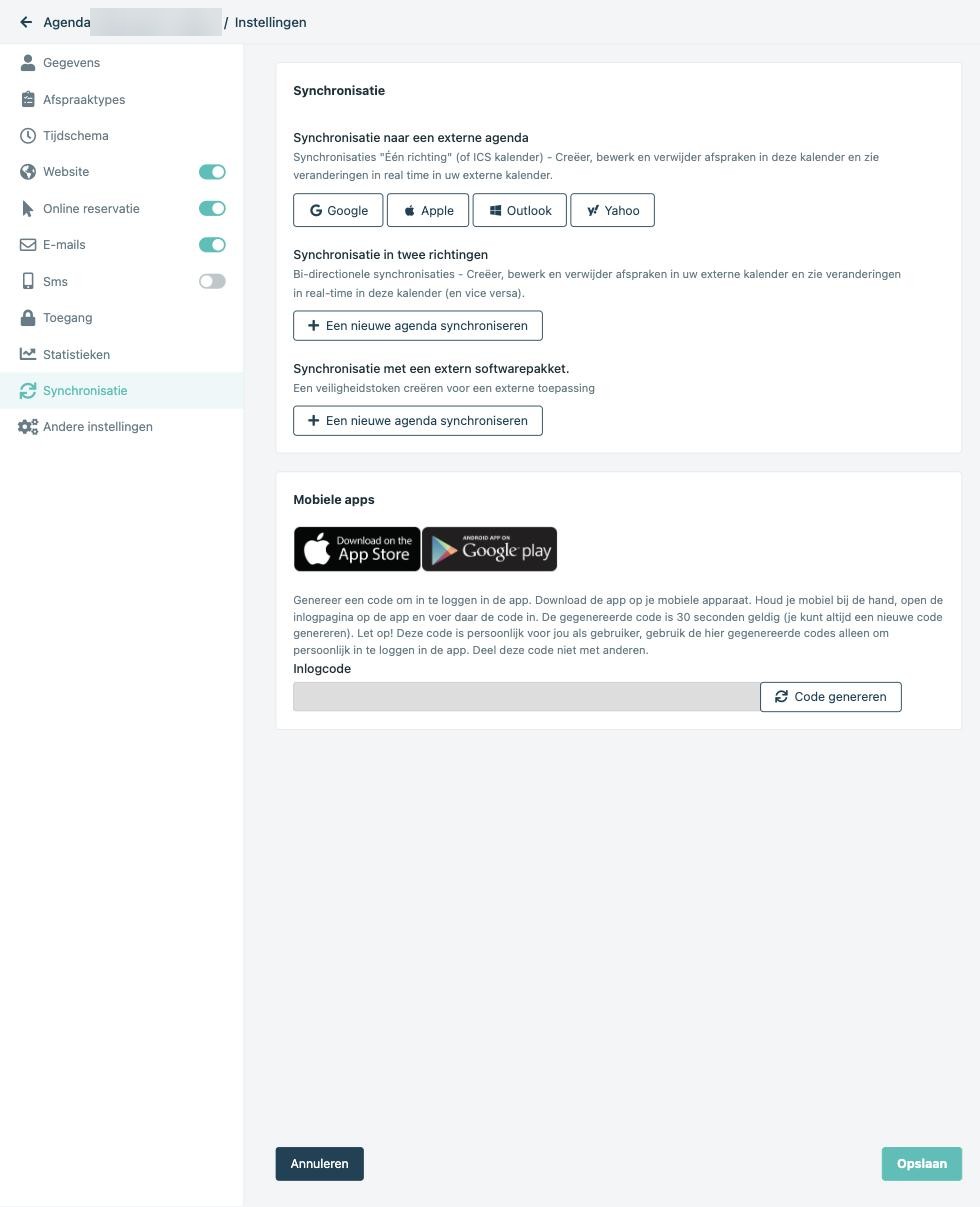
In the same settings, click Synchronisation. At the bottom sits "Synchronisation with external software". Click "Synchronise a new calendar" there.
- 3
Create the token
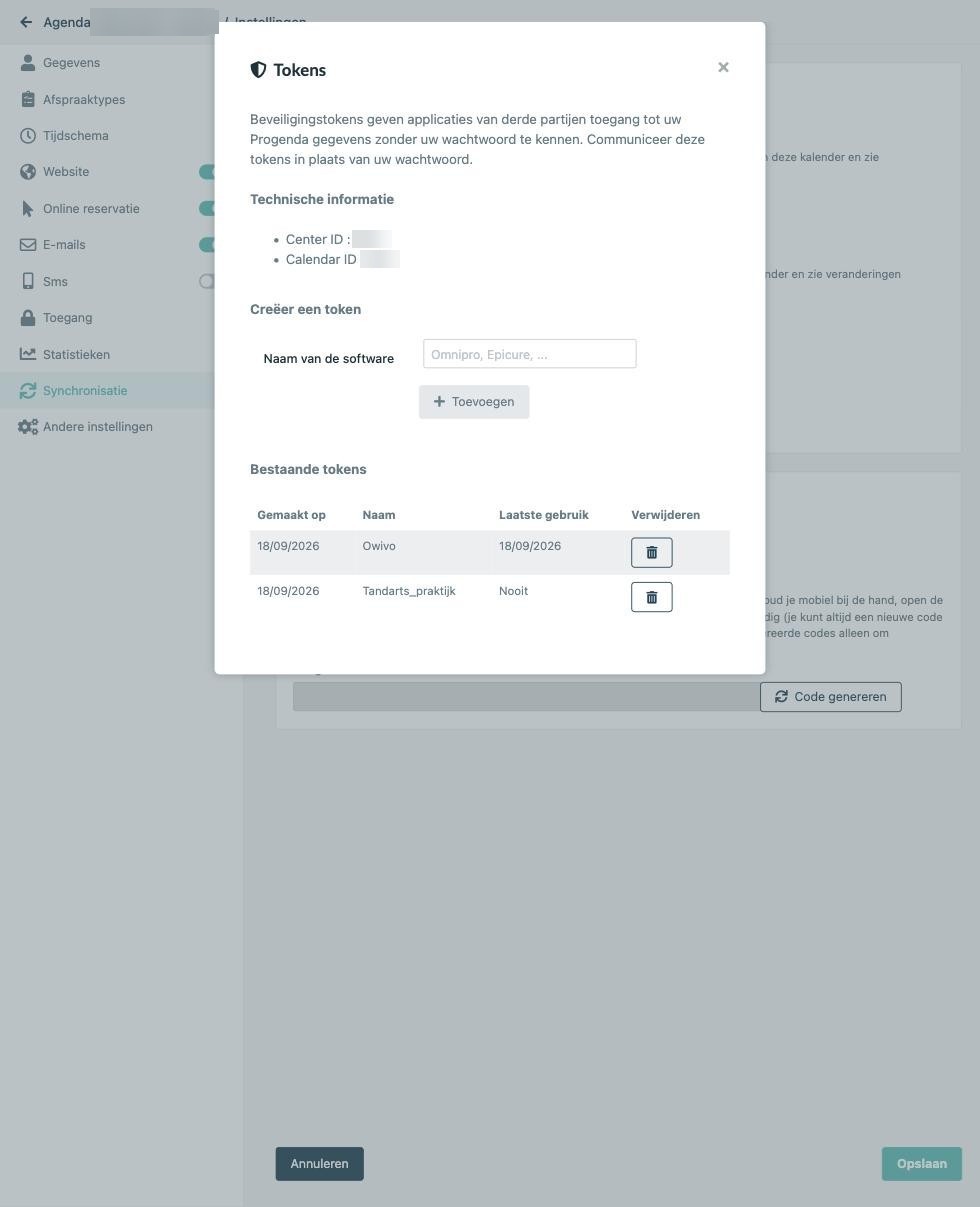
A "Tokens" window opens. Type Owivo under "Software name" and click Add. The token appears once, together with the e-mail address of your Progenda user. Copy both right away: afterwards the token cannot be viewed again, only deleted and recreated.
- 4
Paste e-mail and token into Owivo
In Owivo, open your agent, go to Locations and click "Connect Progenda" on the right location. Enter the Progenda user's e-mail address and the token, then click Verify. Owivo fetches your centres and calendars. Pick the centre, tick the calendars Owivo may use, and confirm. Done.
What happens next
- Availability comes from Progenda
- Once a location is connected, every time offered for that location comes from Progenda. The opening hours set in Owivo no longer apply to that location.
- Appointments are written immediately
- An appointment from the chat or the booking widget lands in your Progenda calendar at once, with the patient record (name, phone, e-mail) and the note "Geboekt via Owivo". If Progenda refuses the slot the patient gets no confirmation, so double bookings cannot happen.
- Syncing every five minutes
- Owivo pulls changes every five minutes. Cancel an Owivo appointment in Progenda and it turns cancelled in Owivo too. Appointments you make in Progenda yourself show up in Owivo as "Progenda afspraak" and block that time for the bot.
- You can disconnect any time
- Disconnect the location and Owivo deletes the stored token and the appointments pulled from Progenda, and availability falls back to the opening hours in Owivo. Your appointments in Progenda are left alone.
When something goes wrong
- "Progenda does not accept this e-mail address and token"
- The e-mail address belongs to the Progenda user that created the token, not to your Owivo account. Also check that the token is still in the "Existing tokens" list: deleting is permanent, so create a new token and connect again.
- I am using a Progenda test environment
- Owivo talks to the normal Progenda environment at progenda.be, the one you log into every day. If you created your token in a test or acceptance environment (an address starting with acc.), Owivo rejects it with the message that the e-mail address and token are not accepted. Create the token in the calendar you actually work in.
- The bot offers no times at all
- Almost always an empty schedule or online booking switched off in Progenda. Fill in the weekly schedule, switch online booking on, then click "Sync now" in Owivo.
- Appointment types "Owivo: ..." appeared in my calendar
- That is expected. Owivo puts your appointment types with the right duration into Progenda, prefixed so you recognise them. Do not delete them: they tell Progenda how long an appointment takes.
- Revoking the token
- In the same Tokens window every token has a bin button. Delete Owivo's token and the connection stops immediately; Owivo offers no times for that location until you connect again.
About your token
The token is stored encrypted and never shown again, not even to our support team. You can revoke it in Progenda at any time.
Questions? Get in touch